
UPFIX ASSISTANT
Find context and review past work
Ask about assets, manuals, procedures, and maintenance history. Get useful context without digging through records one by one.
Work management built around your process
Bring requests, projects, training, and day-to-day operations into one system. Define how work moves, make ownership visible, and keep the details together from start to done.
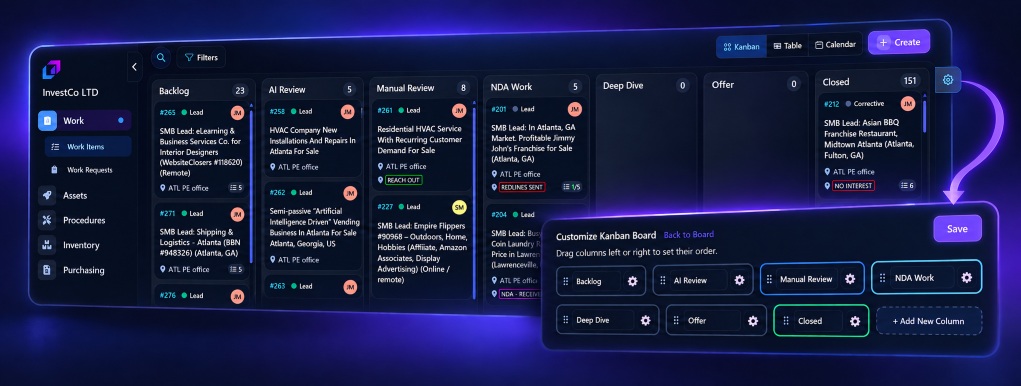
Custom work types and statuses adapt to the way your team operates.
Free includes Work Items (including maintenance work orders) and basic procedures within its capacity limits. Recurring maintenance automations require Team or Pro. Inventory, purchasing, analytics, the UpFix Assistant, and multiple sites require Pro. Compare capabilities and limits.
From request to completed work
A Work Item is a record of work to be done, such as a maintenance job, project task, or training assignment. Maintenance teams may also call these work orders. Keep its owner, tasks, files, updates, and progress together.
Start from a request or create work directly. Choose a work type that makes sense for the job.
Put a person or team in charge, set priority and due dates, and make responsibility clear.
Break work into steps, add instructions and files, and see what is complete or still in progress.
Advance the Work Item through your statuses. Notifications keep assignees and requesters up to date when work changes or is completed.
Make it fit your operation
Different work needs different stages. Configure work types and statuses around how your team receives, reviews, approves, and completes work—then use those workflows across the organization.
AI where it helps
Use the built-in UpFix Assistant for questions about assets, procedures, and past work. Connect an MCP-compatible AI client when you want AI to work with authorized UpFix records.
UPFIX ASSISTANT
Ask about assets, manuals, procedures, and maintenance history. Get useful context without digging through records one by one.
MCP CONNECTION
Connect clients such as ChatGPT, Claude, Cursor, or Codex to find and review Work Items, create work, manage tasks, assign people, and move work forward through authorized actions.
Learn about MCP connectionsWork can move better
Start with one kind of work, set the stages, and bring the next request into UpFix.